Customize ChatGPT to Match Your Style
Tired of ChatGPT's overly enthusiastic tone and excessive em dashes?
You're not alone. The good news is that you can actually personalize how ChatGPT responds to you with a few simple settings adjustments.
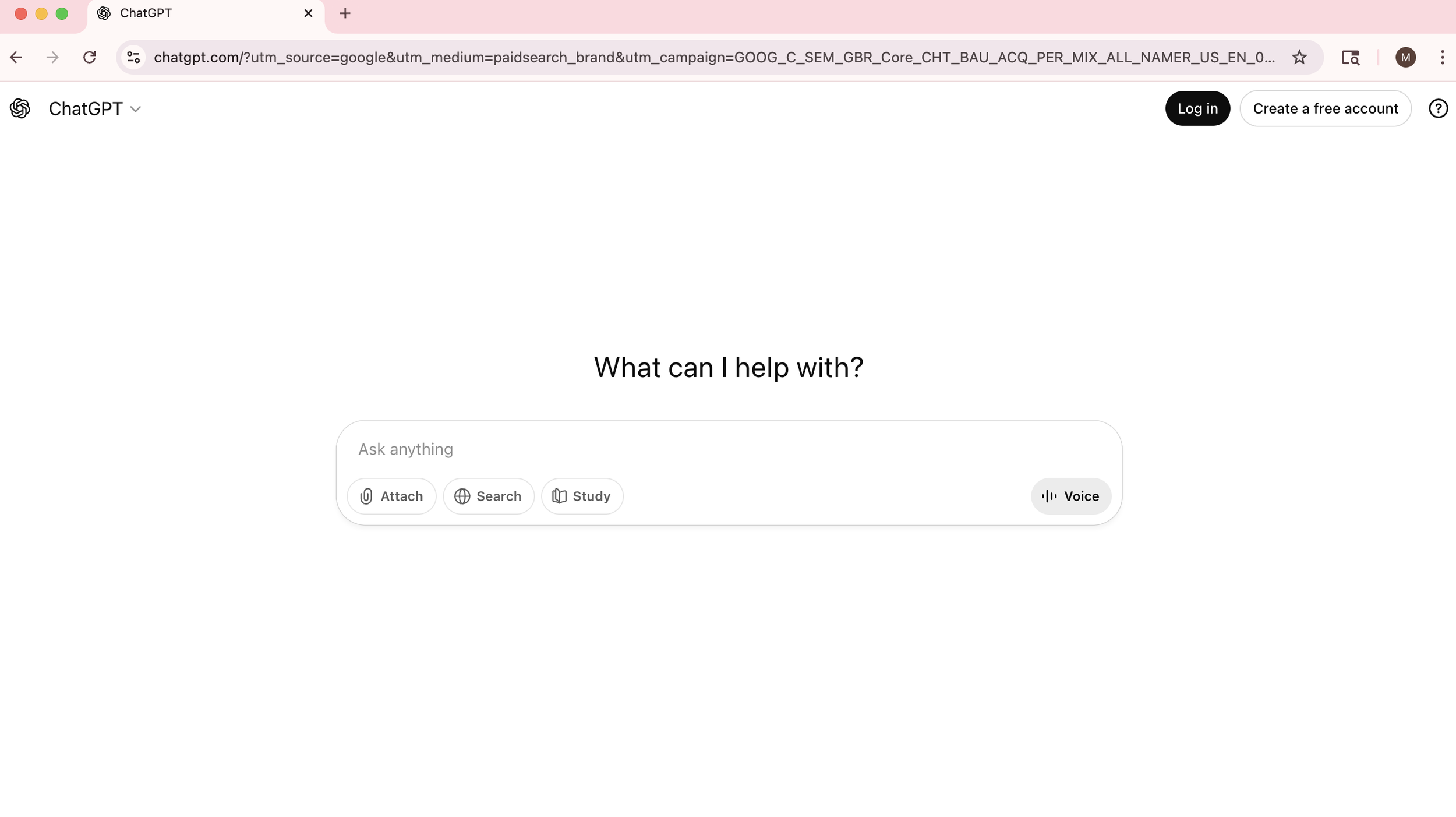
Finding the Personalization Feature
On Desktop: Look at the left sidebar of your screen. Click on your profile name or icon at the bottom left, then select "Settings." From there, navigate to "Personalization" and click on "Custom Instructions."
On Mobile: Tap the menu icon, go to "Settings," then find "Personalization" > "Custom Instructions."
This powerful but underutilized feature lets you set guidelines that ChatGPT will follow in every conversation, eliminating the need to repeat your preferences each time.
Removing Em Dashes
If you find em dashes disruptive to your reading flow, simply add instructions like: "Avoid using em dashes in your responses. Use periods, commas, or semicolons instead." You can also specify your preferred punctuation style, whether that's shorter sentences or more straightforward formatting.
Cutting the Sycophancy
ChatGPT's default tone can feel overly agreeable and peppered with phrases like "Great question!" or "I'd be happy to help!" Beyond the stylistic concern, this overly agreeable behavior can actually compromise the quality of responses. When ChatGPT is too eager to please, it may validate your assumptions rather than pointing out potential errors or offering alternative perspectives. This could lead to less accurate and less objective answers. Address this directly with prompts such as:
"Be direct and straightforward without excessive pleasantries"
"Skip the enthusiastic affirmations and get straight to the answer"
"Don't tell me my questions are great or interesting"
"Adopt a neutral, professional tone without being overly friendly"
Additional Personalization Tips
You can customize much more than just tone and punctuation. Consider adding preferences about:
Response length (concise vs. detailed)
Technical level (explain jargon vs. assume knowledge)
Format preferences (paragraphs vs. bullet points)
Specific domains you work in
The Result
Personalization settings offer a straightforward way to improve your ChatGPT experience. While it won't solve every issue, taking a few minutes to configure your preferences can reduce repetitive friction points and help you get more relevant responses. The tool adapts to your communication style, making interactions more efficient over time.